Submits a request and confirms the result
- Submits a request from a phone, with no app to install
- Scans the QR code on the equipment or picks the room manually
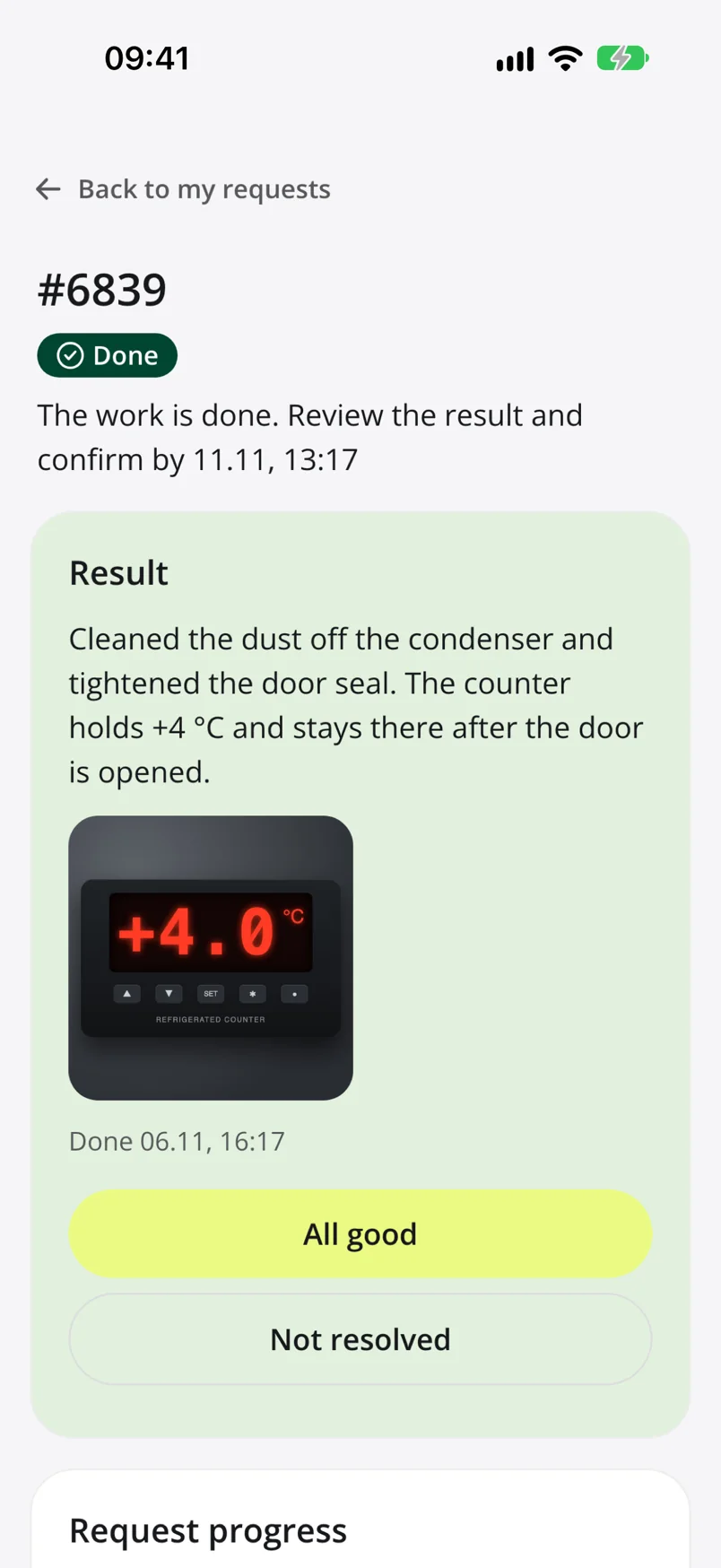
- Sees the status, assigned technician and work result in one card
Bring customers, technicians and managers together in one system: create schedules and track the work from the first request to the confirmed result.
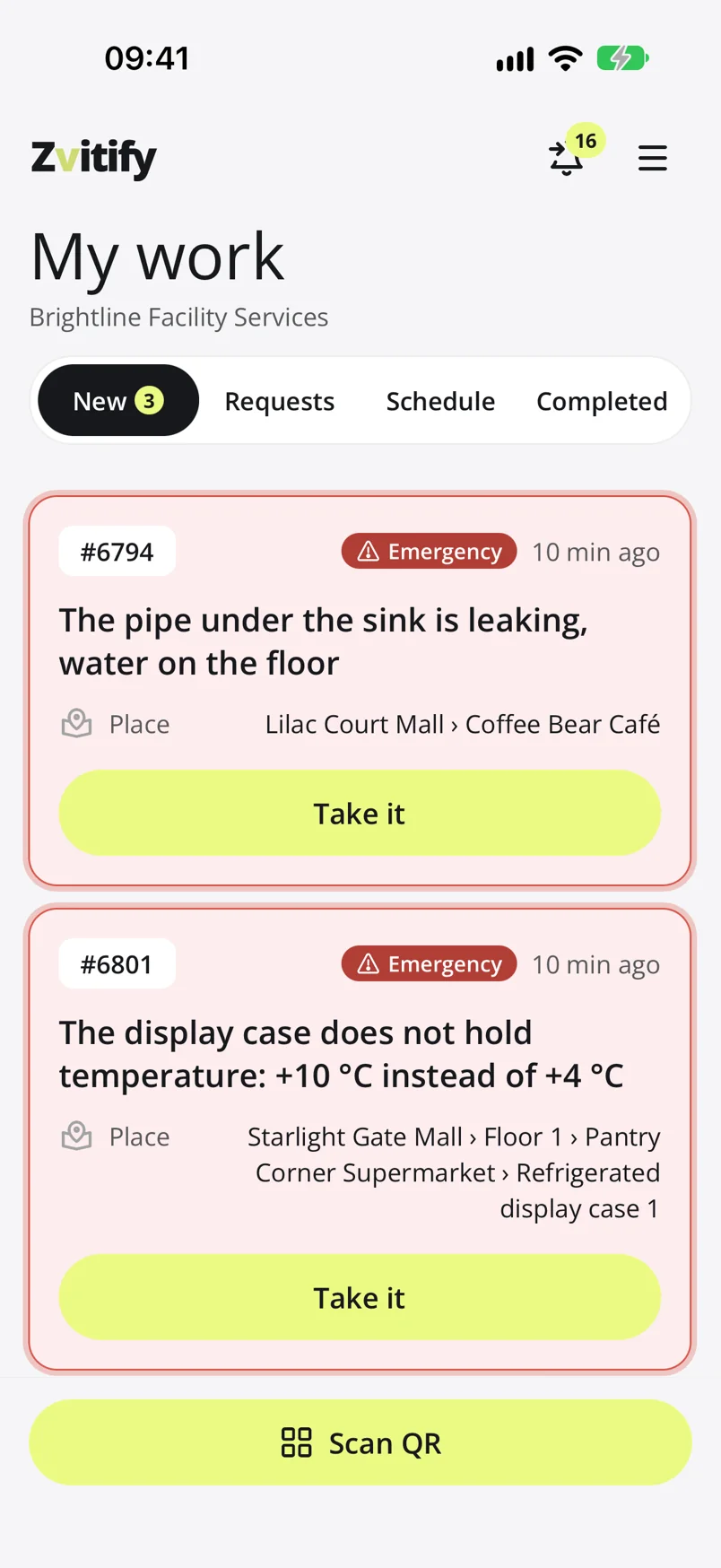
Technician app. Access is provided by your organization
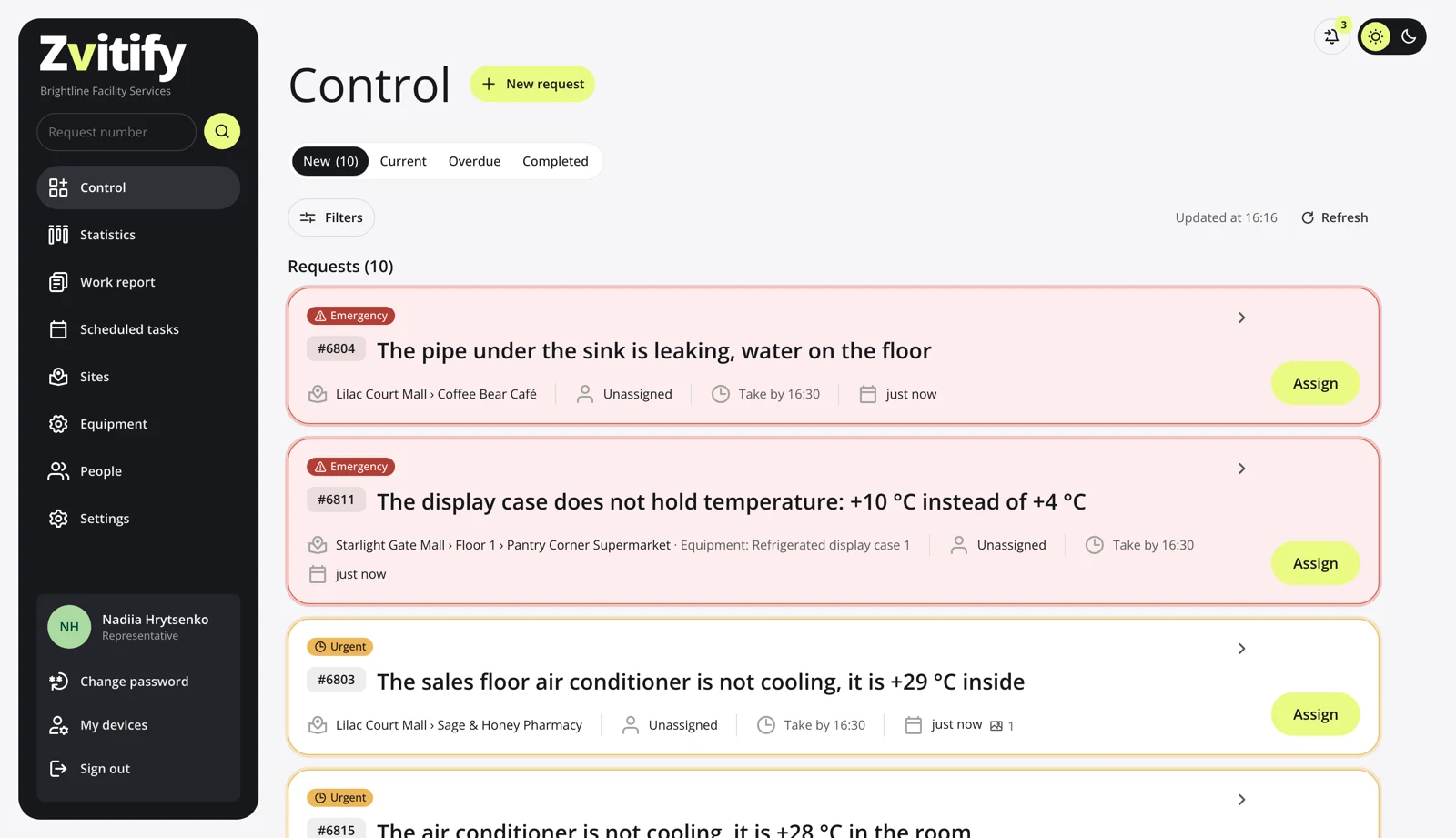
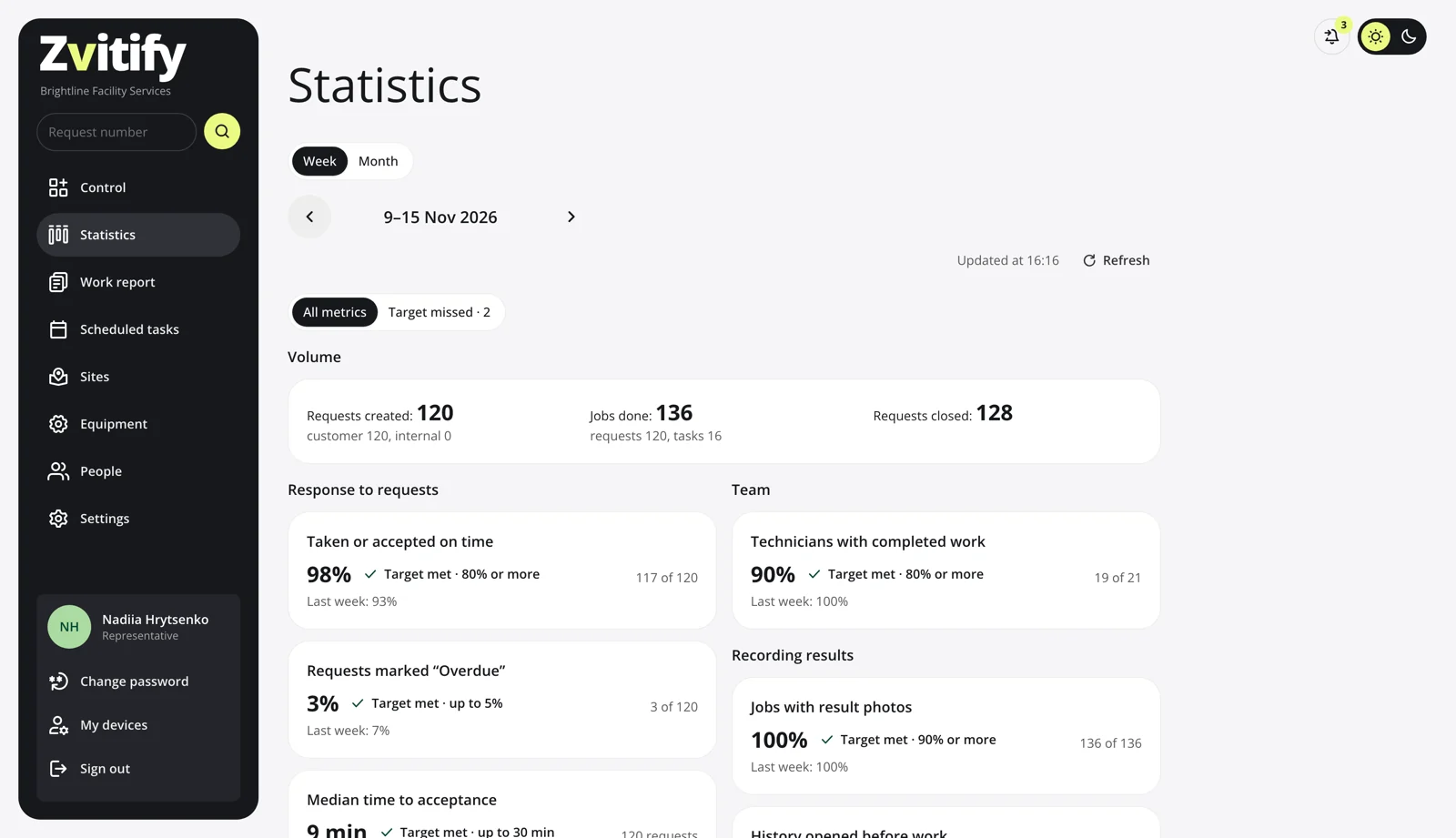
New, active and overdue requests are shown on one screen. Assign work to technicians, view weekly or monthly statistics and track changes in the log.
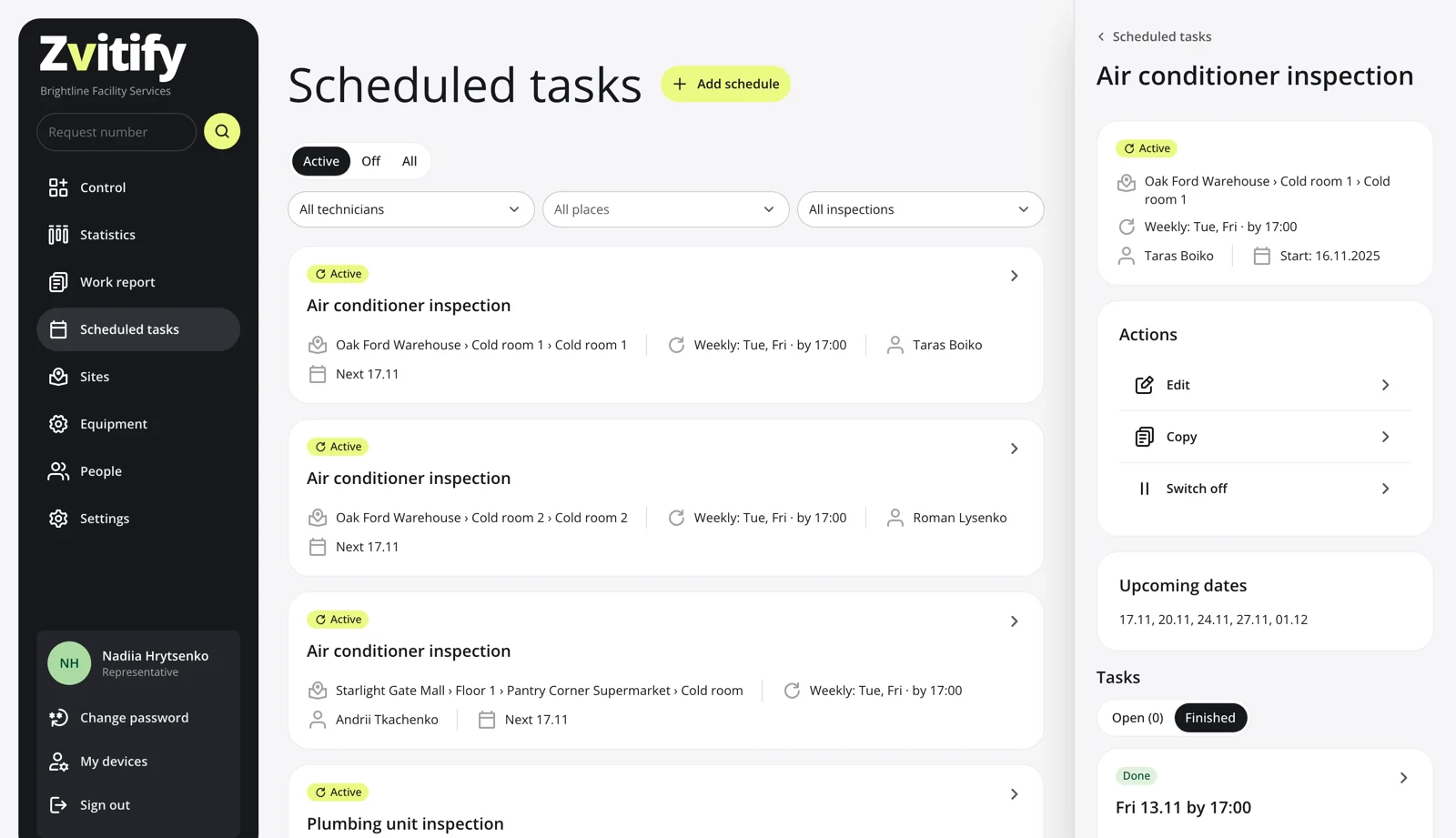
Create a schedule: what to service, how often and who is responsible. Upcoming dates and tasks are visible in your account, and the result of every job is kept with a photo report.
A pipe under the sink is leaking, water on the floor
The air conditioner in the sales hall does not cool, it is +29 in the hall
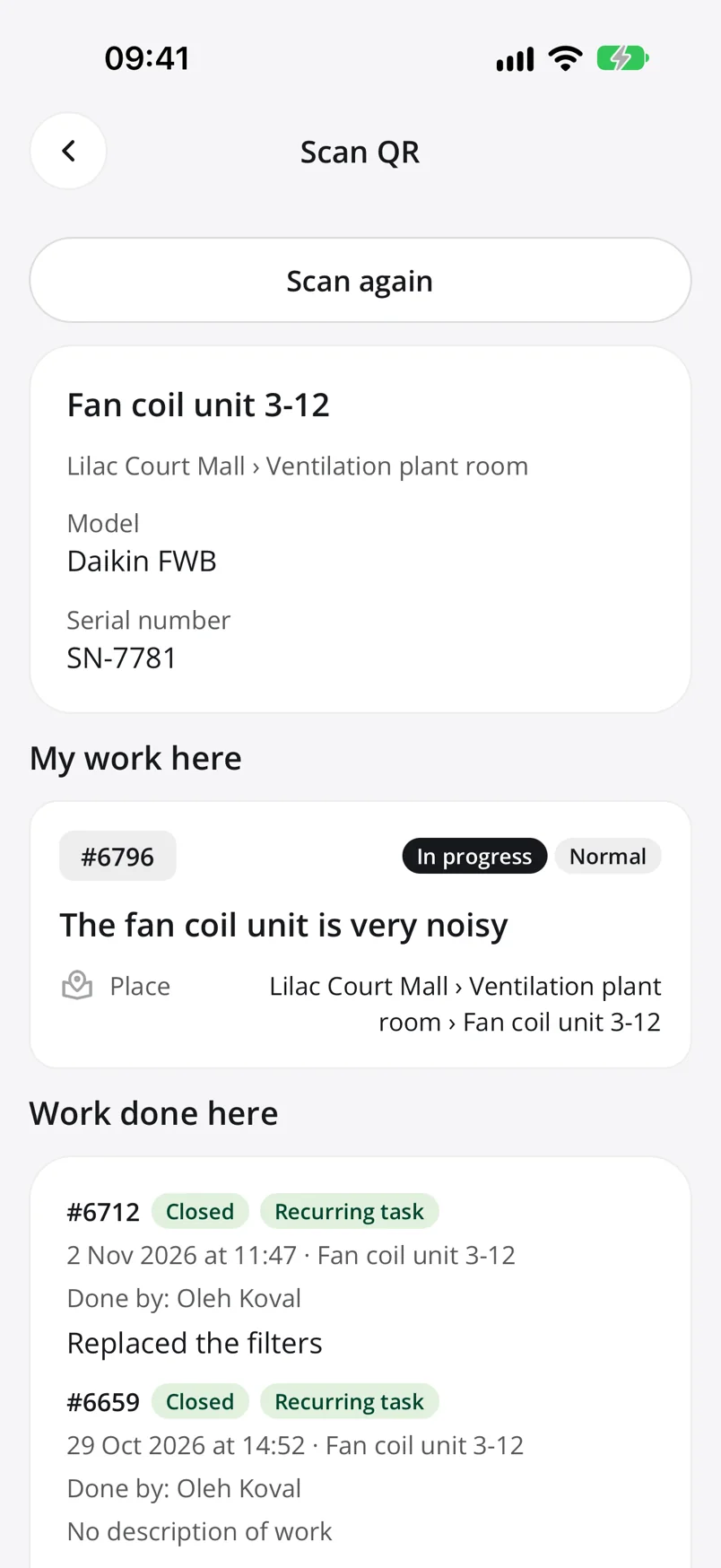
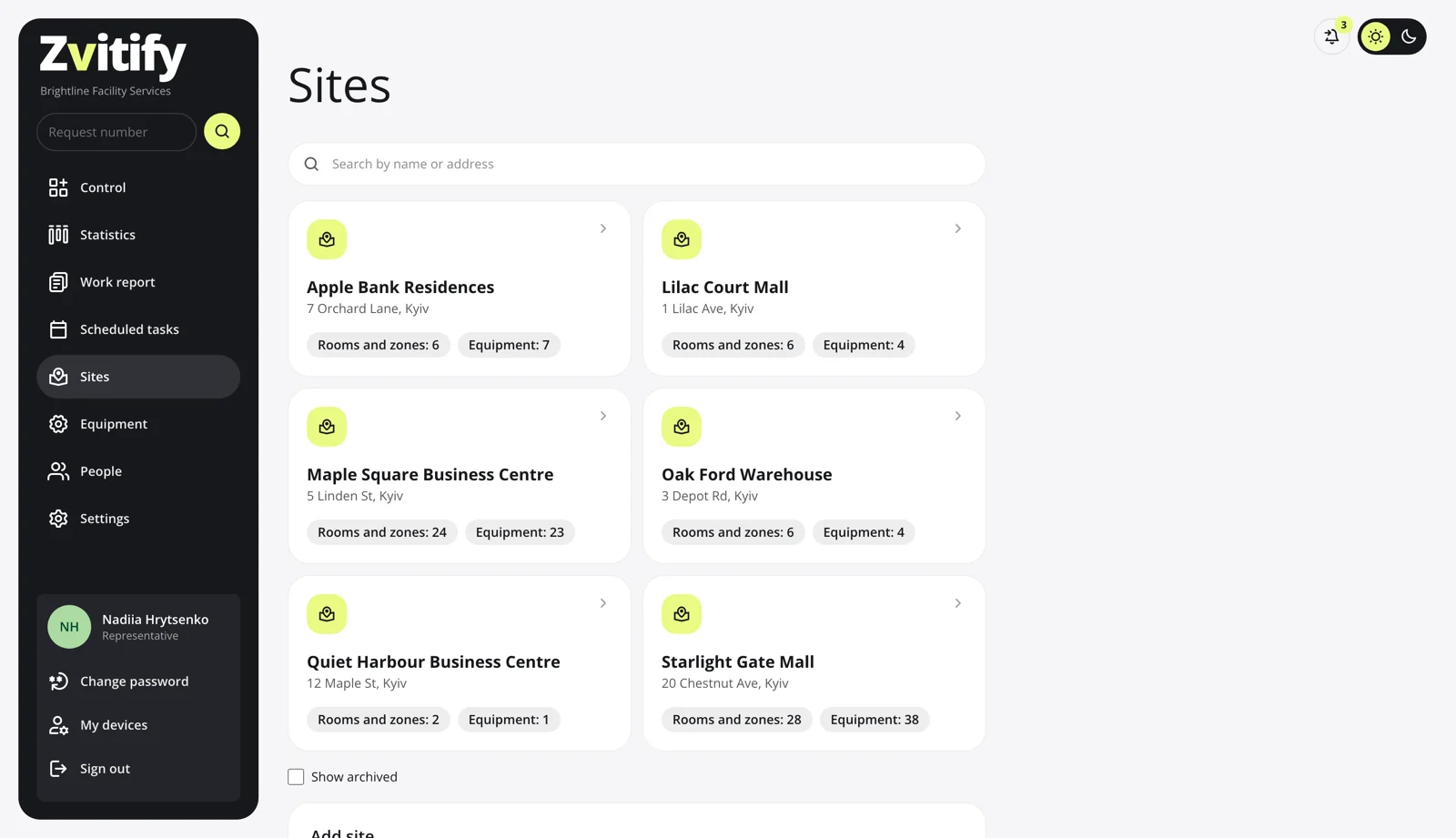
The technician scans the QR code and immediately sees what the device is, which requests are in progress and what work has already been done. Information about all equipment is collected in a single catalog.
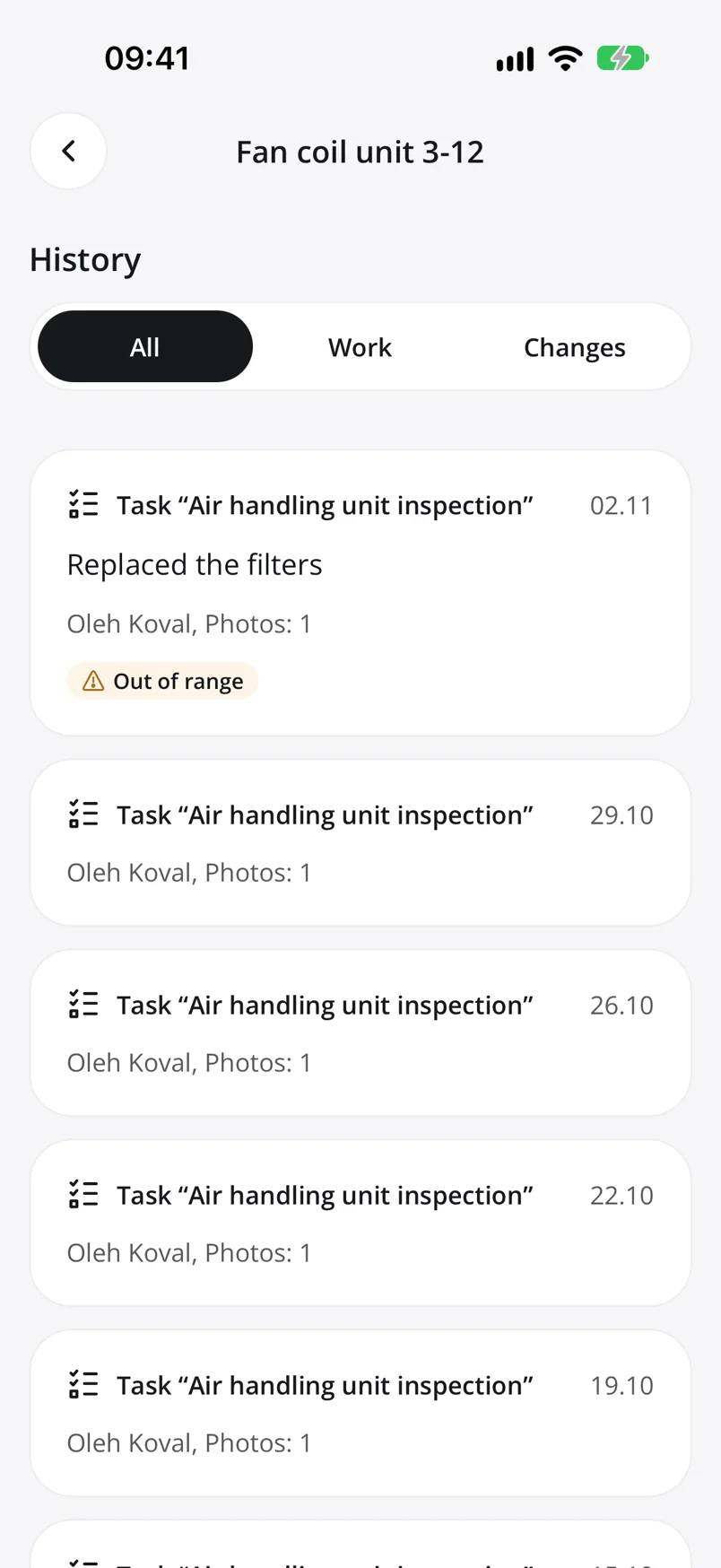
Who did the work, when and what was done. New entries appear at the top. The history helps you factor in earlier repairs and prepare for diagnostics. Repeat requests are labeled "Repeat".
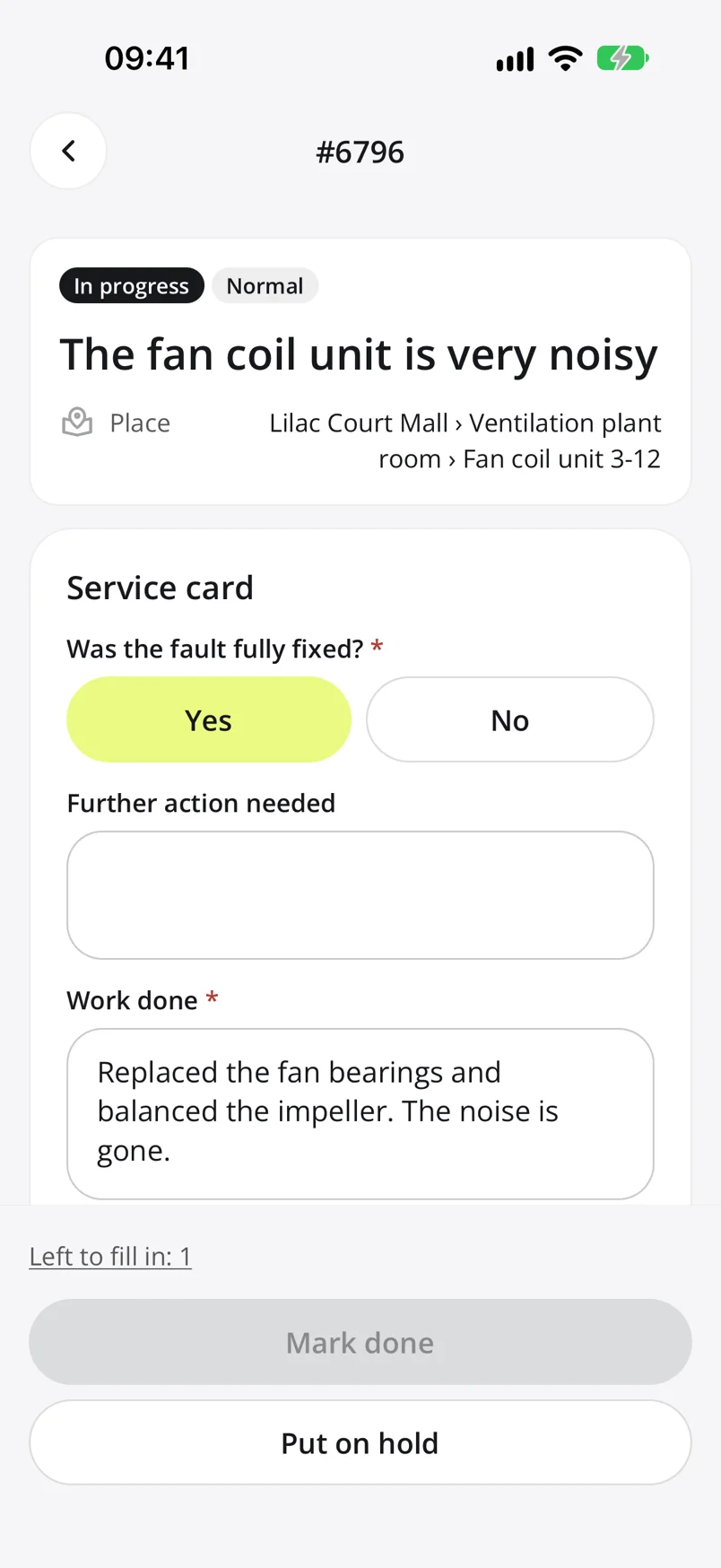
A description of the work done, an answer to the question "Is the cause fully eliminated?", follow-up actions and result photos. The "Done" button becomes active once all mandatory checklist items are filled in, and a photo is required if the template calls for one.
Leave your contact details and we will get in touch to agree on a convenient time for an online meeting.
Requests, recurring maintenance, equipment history and customer reports in one dashboard. An app for technicians and web access for customers.
A web dashboard for representatives of service organizations: requests, recurring maintenance, assignment to technicians, statistics and reports.
New, active, emergency and overdue requests are shown on one screen. Statuses and deadlines are visible at a glance, without opening every card.
The "Control" screenPick a technician from the list or offer the request to several. A technician can also take an available request. Once one takes it, it disappears for the others, so work is not duplicated.
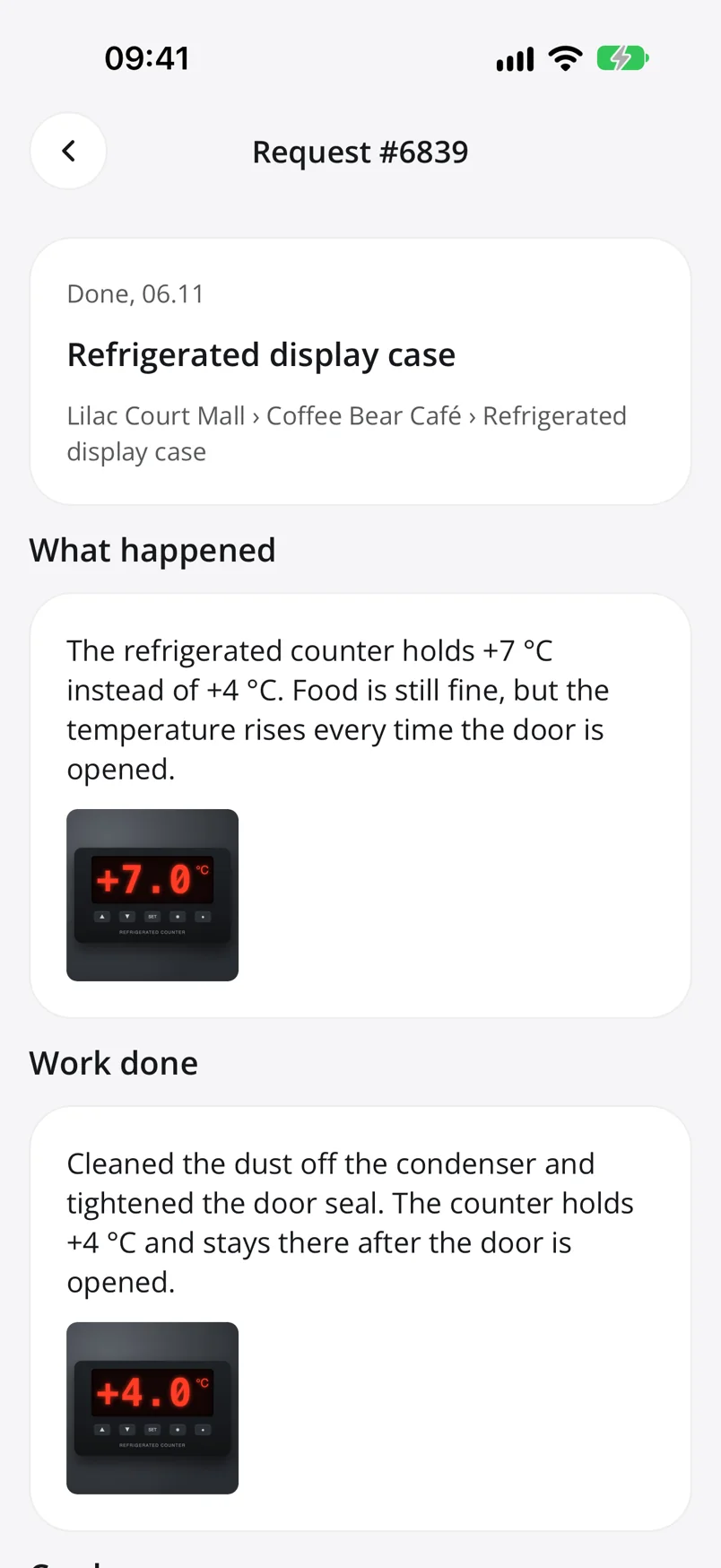
"Assign" and "Offered to you"A technician marks a request as done after filling in the required checklist items (a photo is attached if the template calls for one). The customer checks the result, and after confirmation the request is closed.
Quality controlDescriptions and photos are captured as the work is done. Choose a period and a place to generate a ready-to-send report for the customer or the site owner.
Report of completed workOn site the technician scans the QR code and sees the model, the location and the work history. The manager sees the same history in the equipment card in the dashboard.
QR and equipment cardWeekly or monthly statistics compared with the previous period: requests created and closed, time to acceptance, the share of overdue requests, jobs with result photos and how often the history was checked before starting work.
StatisticsCreate schedules for planned work: the place, frequency, deadline and the responsible technician. Upcoming dates are visible in the dashboard, and tasks are sent to the technician and completed with the same checklist and photo report.
The "Schedules" screen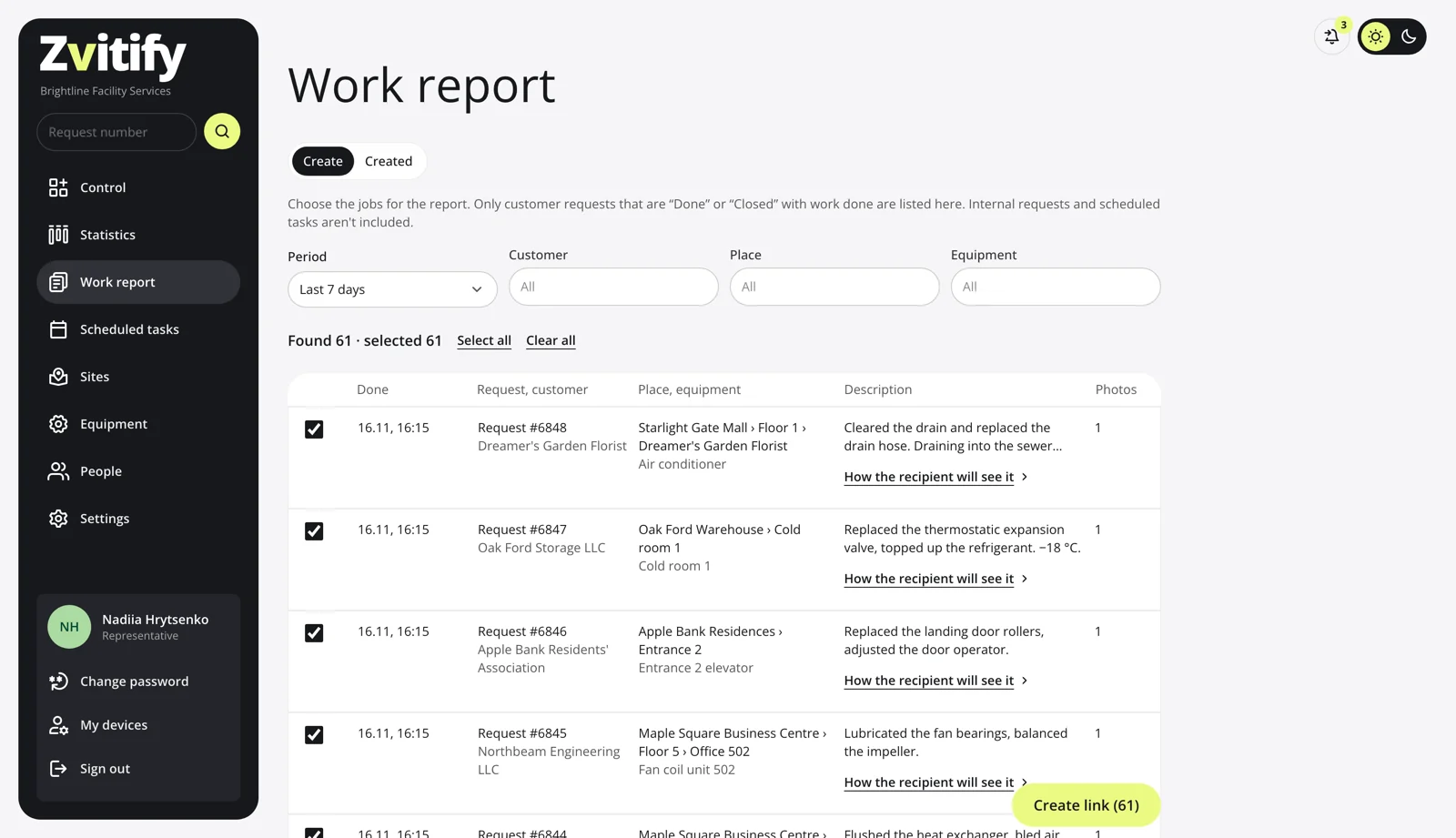
The easier it is for a technician and a customer to work, the fewer calls, repeat visits and disputes about the work done.
Everything needed for work on site in one app: requests, equipment history and checklists.
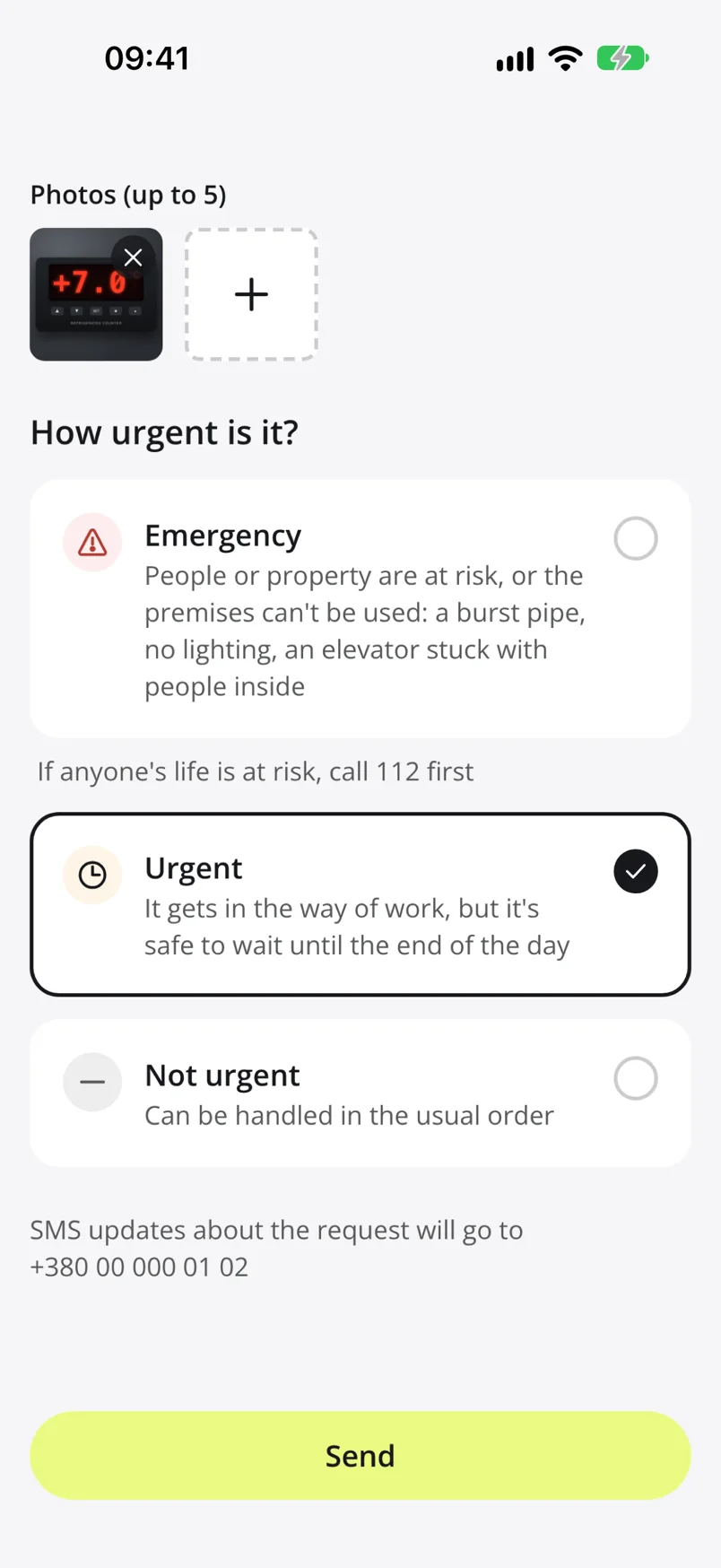
A request can be submitted from a phone by choosing the room and the urgency, with no app to install.
Eight request statuses, from creation to closure. Priorities and marks help to see which requests need attention first.
Priority is always shown with text, not only with colour.
"Overdue" and "Emergency" are visible in the list without opening the card.
In the demo, we’ll show how Zvitify works for your industry.
Zvitify is built for service organizations where requests come from many people and the work is shared between technicians.
Zvitify is built for those who work with clients, so it has three roles. The customer submits requests, the technician carries them out, and the manager distributes the work and controls the result.
Every client has their own service history, and it should be kept in a single system.
They must be quickly assigned to technicians and their completion controlled.
The result of every job is recorded in a checklist and photos, and the customer can get a report.
In fields where sites and equipment need regular maintenance, requests come from different customers, and the completed work must be documented.
Hundreds of units across dozens of sites: chillers, fan coils, rooftop units. Without a history every visit starts from zero.
Elevators, plumbing, lighting, automatic doors, turnstiles. Requests come from tenants on different floors.
Supermarkets, chains, cafés. When a display fridge or a payment terminal stops, every hour costs money.
Critical infrastructure with strict regulations: every inspection and every failure must be documented.
Combi ovens, coffee machines, dishwashers. A breakdown in the middle of a shift means lost orders.
Machines, compressors, generators and pumping stations in plants and factories. Downtime is expensive.
Sensors, panels, access control, cameras. Regular inspections are needed, with proof that a technician visited the site.
Industrial filters, reverse osmosis systems, pump groups in residential complexes and on production sites.
Backup power needs regular maintenance and a fast response to failures.
Lots of standard equipment across dozens of points: nozzles, vacuums, payment terminals, coffee corners.
Scheduled cleaning and ad-hoc calls across different sites.
If you service equipment or sites and requests come from many people, Zvitify fits you too.
Get 12 months for the price of 10
2–3 technicians
4–10 technicians
11–30 technicians
Tailored to your business
Prices are in hryvnias per month, excl. VAT. No limit on requests, sites or equipment.
Prices are in hryvnias per year, excl. VAT. No limit on requests, sites or equipment.
Every feature is available on every plan.
We move your data over and get everything ready for launch: all you have to do is start taking requests.
Or launch on your own with the guide. It’s free.
Features are identical across plans: only the price per technician differs.
The price depends on the number of technicians who had access to the system at the same time during the month.
Example:
8 technicians × 580 ₴ = 4 640 ₴ per month.
30 days with every feature.
After the trial: a paid subscription, or 14 days of view-only access.
Technicians get notifications in the app. About an emergency request, every technician tied to its location, room or site also gets an SMS.
The cost of SMS is already included in the price.
We agree on the price individually. Within this plan we can arrange on-premise deployment, integrations with your systems, an SLA and customization.
Fill in the form and we will show how the system works in your field.
We will get in touch with you shortly.
A short guide to how requests, equipment QR codes and the completion checklist work.
Nothing found. Try another word or write to us.
Did not find an answer? Book a demo or write to us.
Call or write, and we’ll explain how Zvitify can fit your team.
Leave a demo request and we’ll show you Zvitify using your own scenario.
Request a demoAnswers about requests, the QR code on equipment, the checklist and roles.
Open the FAQ
The request queue, QR scanning and marking completed jobs with photos on site. Access is provided by your organization.
Revised 23.10.2026
This policy explains what personal data the Zvitify service processes, why, who it is shared with and how long it is kept. It applies to the cabinet at app.zvitify.com, the customer website and the “Zvitify Technician” app for iOS and Android.
Zvitify is provided by FRESH DYZAIN, TOV (EDRPOU code 43044753). The service helps service organizations receive repair and maintenance requests, assign technicians and keep the work history of equipment and premises.
You can contact us about personal data at [email protected].
Data about requests, locations, equipment, employees and customers is entered by the service organization that uses Zvitify. It decides why this data is collected, so it is the controller. We process this data on its behalf and only to provide the service.
We are the controller of the data needed to run the service itself: accounts of service organization representatives, security logs, crash reports and app analytics.
If you are a technician of a service organization or an employee of its customer, please contact that organization first with questions about your data.
Photos added by service organization employees are stored unchanged, together with the time and place of shooting if the phone recorded them. This is evidence of the work done for warranty cases and inspections. Only the organization’s employees see these originals.
Photos that a customer adds to a request on the website are compressed by the browser before sending, and their metadata is removed. The customer, and anyone opening the work report link, see only copies of the photos without metadata.
Data we process on behalf of a service organization is processed on the grounds that this organization has, including the performance of its contracts with customers and employees.
The service’s own data is processed to perform the contract with the service organization and for our legitimate interest: the security of the service and fixing failures.
We do not sell personal data and do not show ads. Data is received only by providers without whom the service does not work, and only to the extent needed:
Data is transferred only encrypted (HTTPS). Access depends on the person’s role, and each organization’s data is separated at the database level. Passwords are stored only as a hash, the number of login attempts is limited, and the actions of our support team are recorded in a separate log.
Under the Law of Ukraine “On Personal Data Protection” you have the right to know what data about you is processed, to access it, to demand its correction or deletion, to object to processing and to file a complaint with the Ukrainian Parliament Commissioner for Human Rights.
To exercise these rights, contact the service organization you work with, or write to us at [email protected]. How to delete an account is described on the “Account deletion” page.
Zvitify is a work service and is not intended for children.
When the policy changes, we update this page and the revision date at the top.
We notify service organizations of significant changes in advance.
© 2026 FRESH DYZAIN, TOV, EDRPOU code 43044753. Zvitify is a service for maintaining equipment and premises.